
If you require assistance with BCB, you can submit a Support Request through the Support and Help page. Alternatively, follow this link to our Support Request Form
Support Requests can be used to:
- Report issues or bugs
- Request onboarding assistance
- Get help with integrations
- Ask subscription questions
- Report forecast or scenario issues
- Book a demo
- Learn more about BCB
To help us investigate your request quickly, include as much information as possible about the issue you are experiencing.
Before You Submit a Request
Before contacting support, try to gather the following information:
- What you were trying to do
- What happened
- What you expected to happen
- Any error messages displayed
- Relevant quote, work, scenario or transaction references
- Screenshots where possible
For syncing issues, include the connected integration and last sync information.
For forecasting questions, include the period and values you are reviewing.
Note: Do not include passwords, authentication codes or other sensitive information in your support request.
Step 1: Open the Support Request Form
Navigate to the Support and Help page and open the Support Request Form.
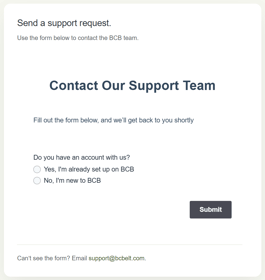
Step 2: Select Your Account Status
Choose one of the following options:
Yes, I'm already set up on BCB
Select this option if you are an existing BCB user and require assistance with the platform.
No, I'm new to BCB
Select this option if you would like:
- A demo
- More information about BCB
- Help choosing a subscription
- General pre-sales assistance
New to BCB
If you select No, I'm new to BCB, you'll be asked to provide:
- Full Name and Company
- Email Address
You can then choose how BCB can help.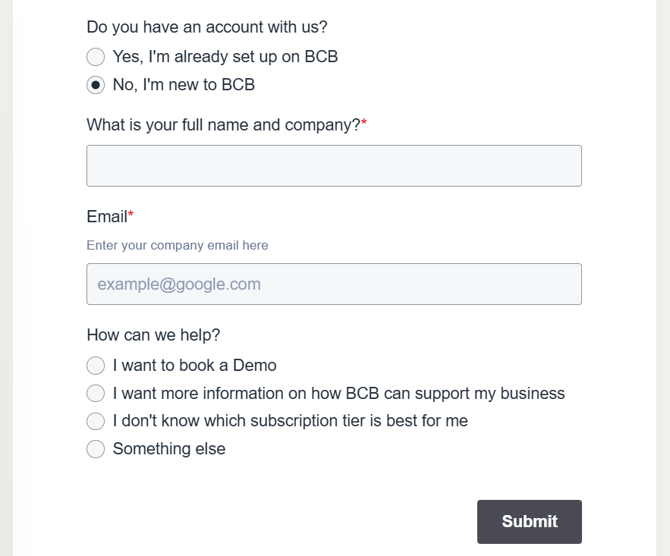
Booking a Demo:
Select:
I want to book a Demo
You'll be asked to provide:
- Preferred day and time
- Any additional information that you'd like to include
Learning More About BCB:
Select:
I want more information on how BCB can support my business
Use the additional information field to tell us:
- What your business does
- Current systems you use
- Challenges you're trying to solve
Choosing a Subscription:
Select:
I don't know which subscription tier is best for me
Use the questions field to tell us about:
- User requirements
- Forecasting needs
- Integration requirements
- Business goals
Something Else:
Select:
Something Else
Provide as much information as possible about your enquiry
Existing BCB Customers
If you select Yes, I'm already set up on BCB, you'll be asked to provide:
- Your name and company
- Email address
- The type of support required
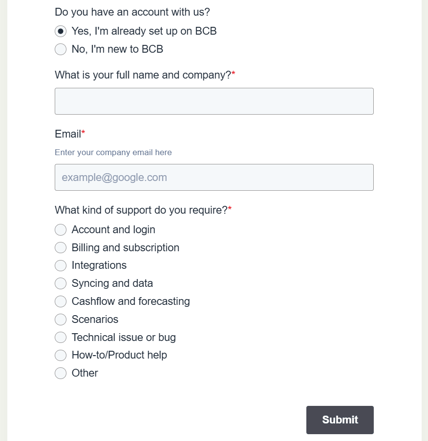
Step 3: Select a Support Category
Choose the category that best matches your request.
Available categories include:
- Account and Login
- Billing and Subscription
- Integrations
- Syncing and Data
- Cashflow and Forecasting
- Scenarios
- Technical Issue or Bug
- How-To / Product Help
- Other
Step 4: Describe the Issue
Provide a short summary in:
What do you require assistance with?
Example: Simpro quotes are not appearing in Quote Register
Then provide additional details in:
Detailed Description
Explain:
- What you were doing
- What happened
- What you expected to happen
- Any error messages received
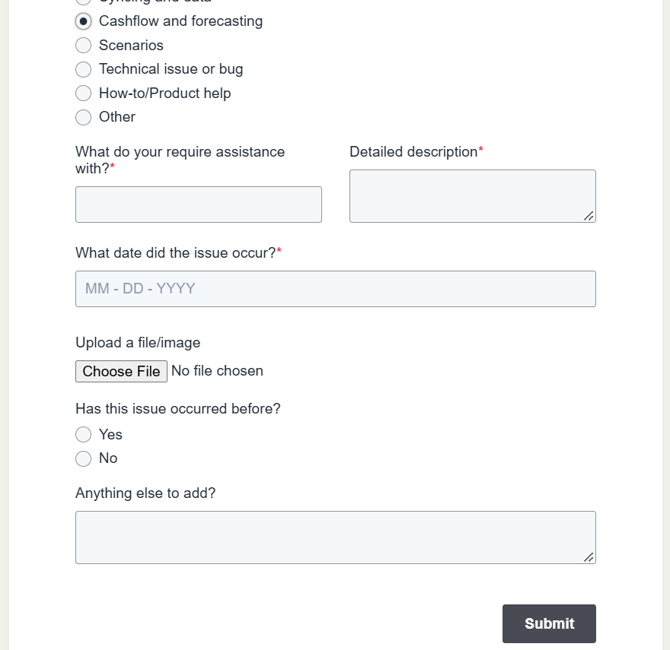
Step 5: Provide Additional Information
To help us investigate your request, you'll also be asked for:
Date the Issue Occurred
Provide the approximate date the issue first occurred
Upload a File or Image
Attach screenshots where possible
Has This Issue Occurred Before?
Select Yes or No
Anything Else to Add?
Include any additional details that may assist with the investigation
Step 6: Submit Your Request
Review your information and select:
Submit
Your request will be sent directly to the BCB Support Team
Tips for Faster Support
Support requests are resolved faster when they include:
- Screenshots
- Error messages
- Integration involved
- Steps performed before issue occurred
- Expected behaviour
- Actual behaviour
- Relevant quote, work or scenario references
What Happens Next?
Once your request has been submitted:
- The BCB Support Team reviews the information provided.
- Additional information may be requested if required.
- We work with you to resolve the issue as quickly as possible