
Before You Begin
- You must be Organisation Admin to manage integrations.
- Disconnecting an integration will stop data from being imported from the connected system.
- Existing data within BCB may remain available after disconnection.
Disconnect an Integration
Step 1. Open the Integration Centre
Navigate to: Setup → Integration Centre
Step 2. Locate the Integration
Find the integration you wish to disconnect.
Step 3. Disconnect the Integration
Select the Down Arrow and then the Disconnect option for the integration.
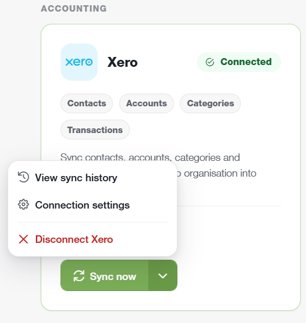
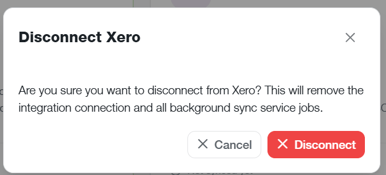
Step 4. Confirm the Disconnection
Follow any prompts displayed on screen to complete the disconnection.
Step 4. Success
Once the user has been reactivated, a success message will appear stating:
- Xero disconnected successfully
- The 'connected' label on the integration will change to 'Not connected'
Important Information
- Disconnected integrations will no longer sync to BCB.
- You can reconnect a supported integration at any time.
- If you disconnect an integration by mistake, you must reconnect before syncing new data.
- Contact BCB Support if you require assistance disconnecting an integration.
- BCB only supports a single accounting software connection per organisation.
- If you wish to connect a different accounting organisation or switch between accounting platforms (for example, from Xero to MYOB), all organisation data must first be deleted before a new accounting integration can be connected.