
Before You Begin
- You must have access to Billing settings.
- Only users who are Billing Admin can manage subscription plans.
- Changes to your subscription may affect the features and limits available to your organisation.
Change Your Subscription Plan
Step 1. Open Billing
Navigate to: Setup → Billing
Step 2. Open Manage Billing
Click Manage Billing.
Step 3. Open the Plan Page
From the Billing portal, select Plan from the Organisation Settings menu.
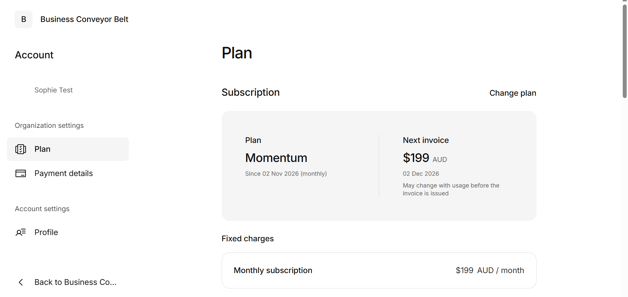
Step 4. Select Change Plan
Click Change Plan.
Step 5. Choose Your New Plan
Review the available plans and select Choose Plan on the subscription you would like to move to.
Step 6. Review Subscription Details
Confirm the selected plan and review the pricing and next invoice information.
Step 7. Confirm the Change
Click Subscribe and Pay Now to complete the subscription change.
Success
Once the change has been completed, your new subscription plan will be displayed in the Plan section.
Important Information
- Upgrading or downgrading your subscription may change the features available to your organisation.
- Subscription changes may affect plan limits and available functionality.
- Your next invoice amount may change depending on your selected plan.
- Payment will be processed using the payment method stored on your account.
- If you are unsure which plan best suits your organisation, contact BCB Support for assistance.
Available Plans
BCB currently offers the following subscription plans:
- Foundation – Essential visibility
- Momentum – Broader planning support
- Performance – Advanced planning depth