
Before You Begin
- You must have access to the billing portal
- Only users with billing permissions can manage subscription payment details.
Update Your Payment Method
Step 1. Open Billing
Navigate to: Setup → Billing
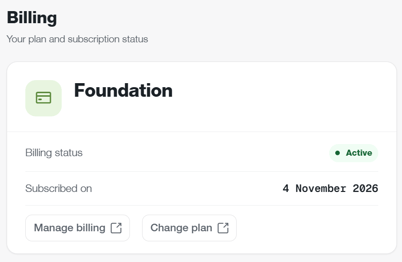
Step 2. Open Manage Billing
Click Manage Billing.
Step 3. Open Payment Details
Navigate to the Payment Details section.
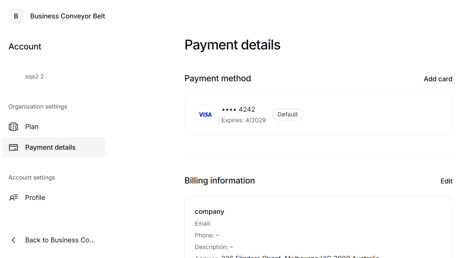
Step 4. Update Your Payment Details
Add a new payment method or update your existing payment details.
Step 5. Save Changes
Follow the prompts to save your updated payment details.
Step 6. Changing Default Card
When adding/changing your default payment method, make sure to click on the three dots on the right hand side and click 'Make default' this ensures the new card is charged, not the old one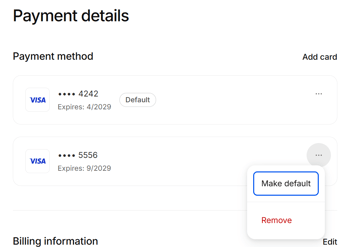
Important Information
- Changes take effect immediately after being saved.
- Future subscription payments will use the updated payment method.
- If your payment method has expired, update it as soon as possible to avoid payment issues.